FOUNDING OFFERSign up to unlock 35% off your first plan.

How to Make Black Friday Product Videos

Open with the Black Friday offer, show one detail worth buying, then tell shoppers when and where to get it.

Worked example: a plush bear bag. Use the same shot plan for your own sale item.

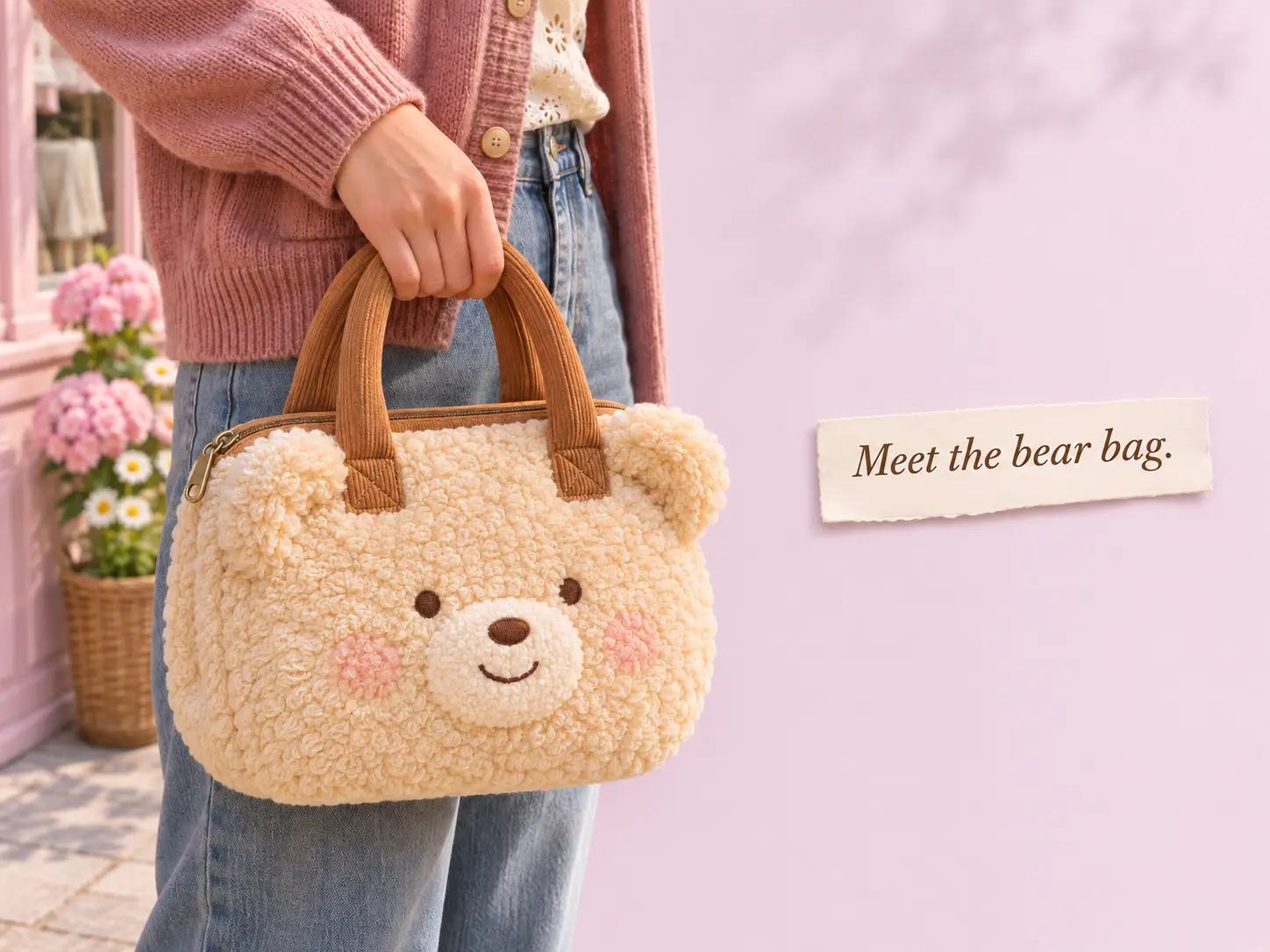
A shopper carries a cream teddy bear bag by its caramel handles beside her jeans.

Example running time

A 12-second Black Friday launch video, shot by shot

01

0–3 seconds · Name the offer

Show the actual sale item in the opening frame. Put “Black Friday” beside the item name and price so a viewer watching on mute knows what the promotion covers. A storewide offer can name the collection. A single-item offer should name the item.
02

3–8 seconds · Answer a buying question

Use the middle shot for something a discount label cannot show. Carry a bag to show its size, open a gift box to show what comes inside, or swatch a lipstick to show the shade. Choose the shot that helps someone decide.

03

8–12 seconds · Make the next step clear

End on the product, the real cutoff with its time zone, and one way to buy. Hold the frame long enough to read it on a phone. If checkout needs a code, put it beside the offer and repeat it in the caption.

Made for your business

How the video changes before, during and after launch

Before Black Friday, earn a return visit

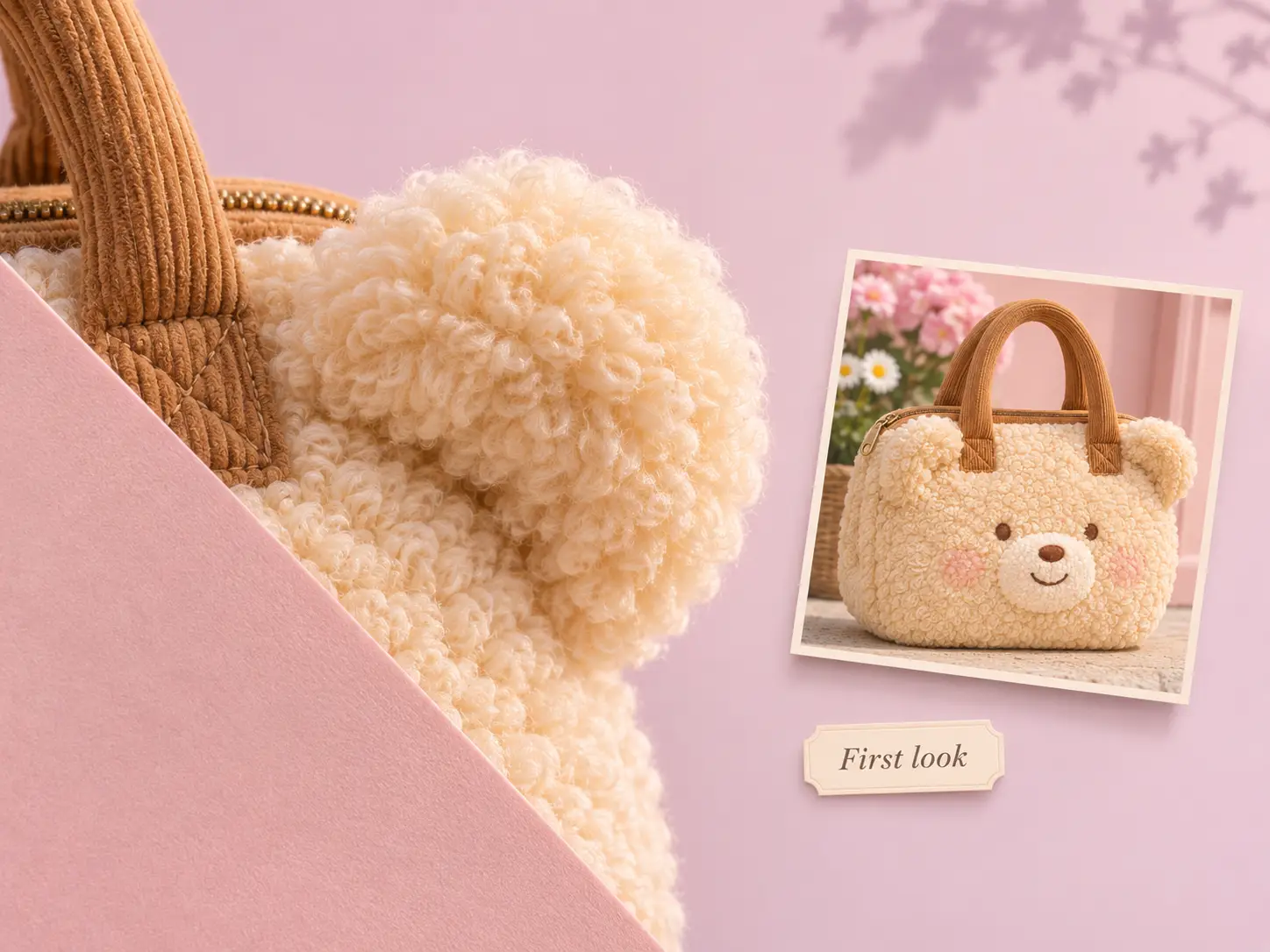
Reveal enough for shoppers to recognize the product on Friday, then give them the opening time. In the bear bag example, one fuzzy ear enters the frame first. The camera pulls back to the handles as the sale date appears.

A close-up of a fuzzy cream ear hints at the bear bag shown in the smaller preview.

On launch day, put the deal in the shot

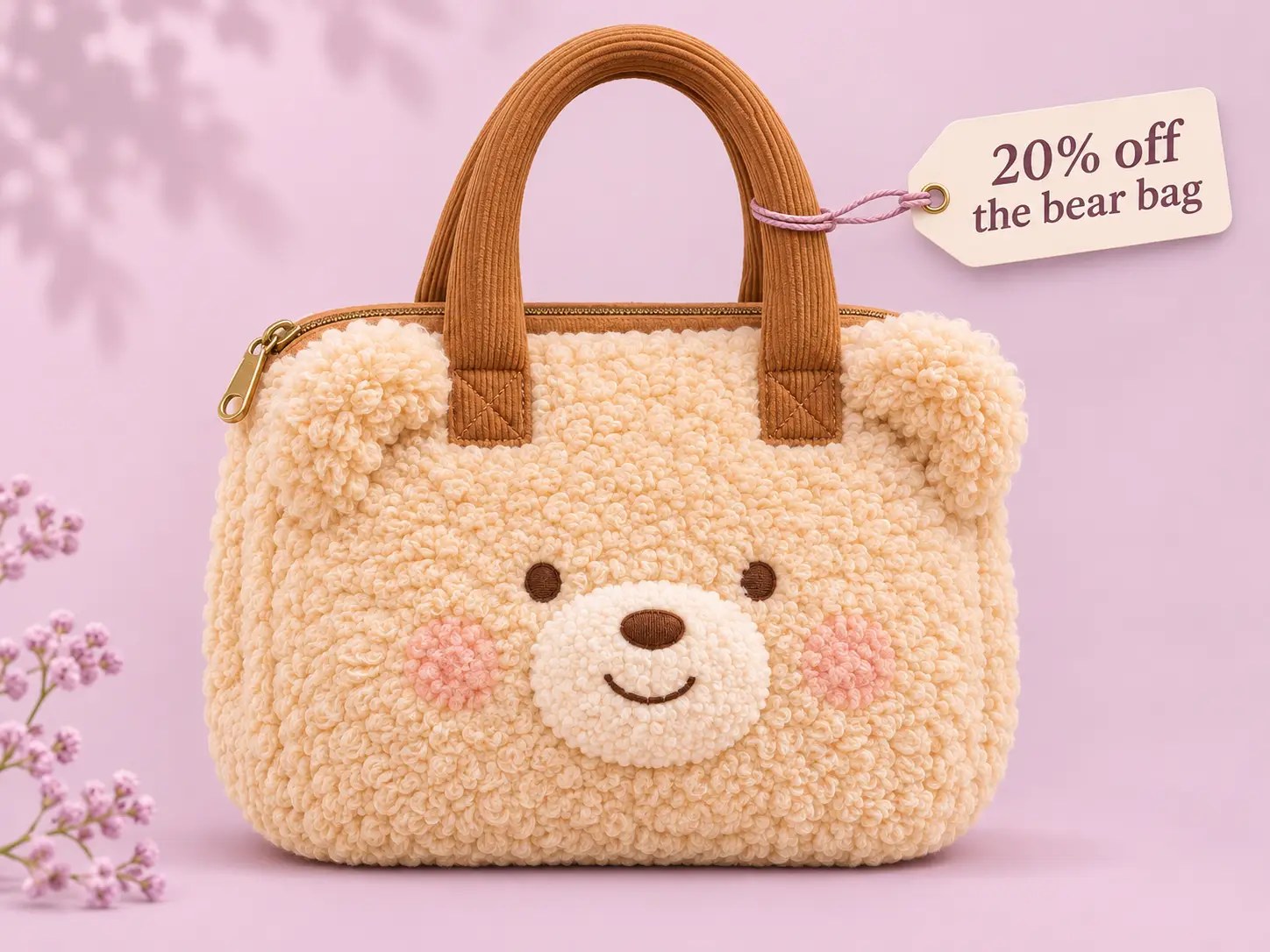
Pair the selling price with a view that explains the product. For the bear bag, the opening shot shows it in someone’s hand, with the sale price alongside it. A closer shot of the zipper answers the next question: does it close securely? The final frame points shoppers to the cream color.

A cream teddy bear handbag appears beside an example offer of 20% off.

Before the sale ends, lead with the cutoff

Someone who saved the launch post already knows the product. Use the opening frame to answer what has changed: the offer ends tonight. Bring back the same product view for recognition, show the exact time, and send viewers straight to the eligible item.

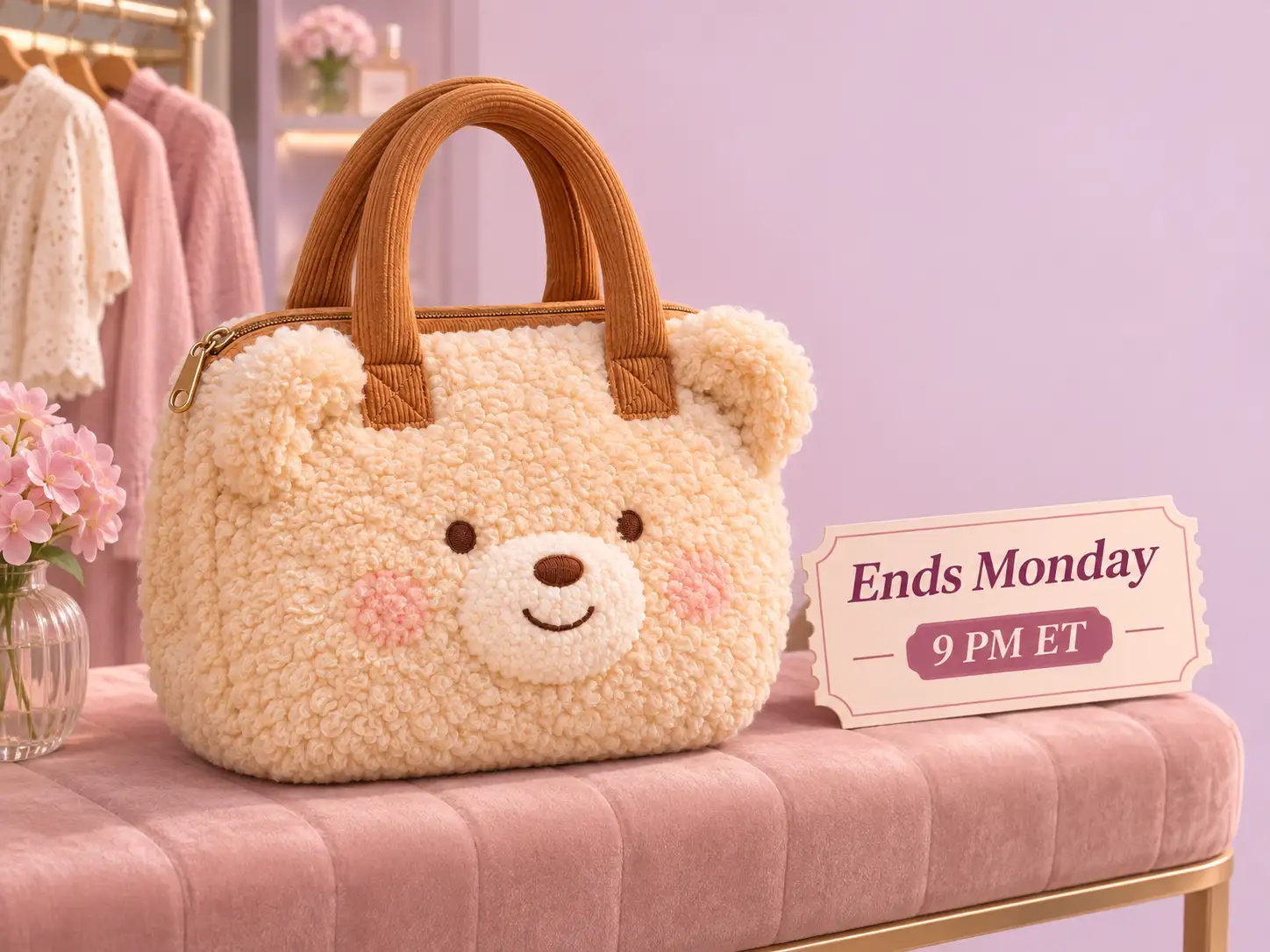
A sale reminder beside the teddy bear bag gives the example deadline of Monday at 9 PM ET.

Check the offer with the sound off

Play the cut once on a phone without sound. Can you name the item, repeat the deal and find the next step? Pause on the price frame: make sure the product and price are both visible around the app’s buttons. Then open the shop link and try the code or automatic discount on the featured variant.

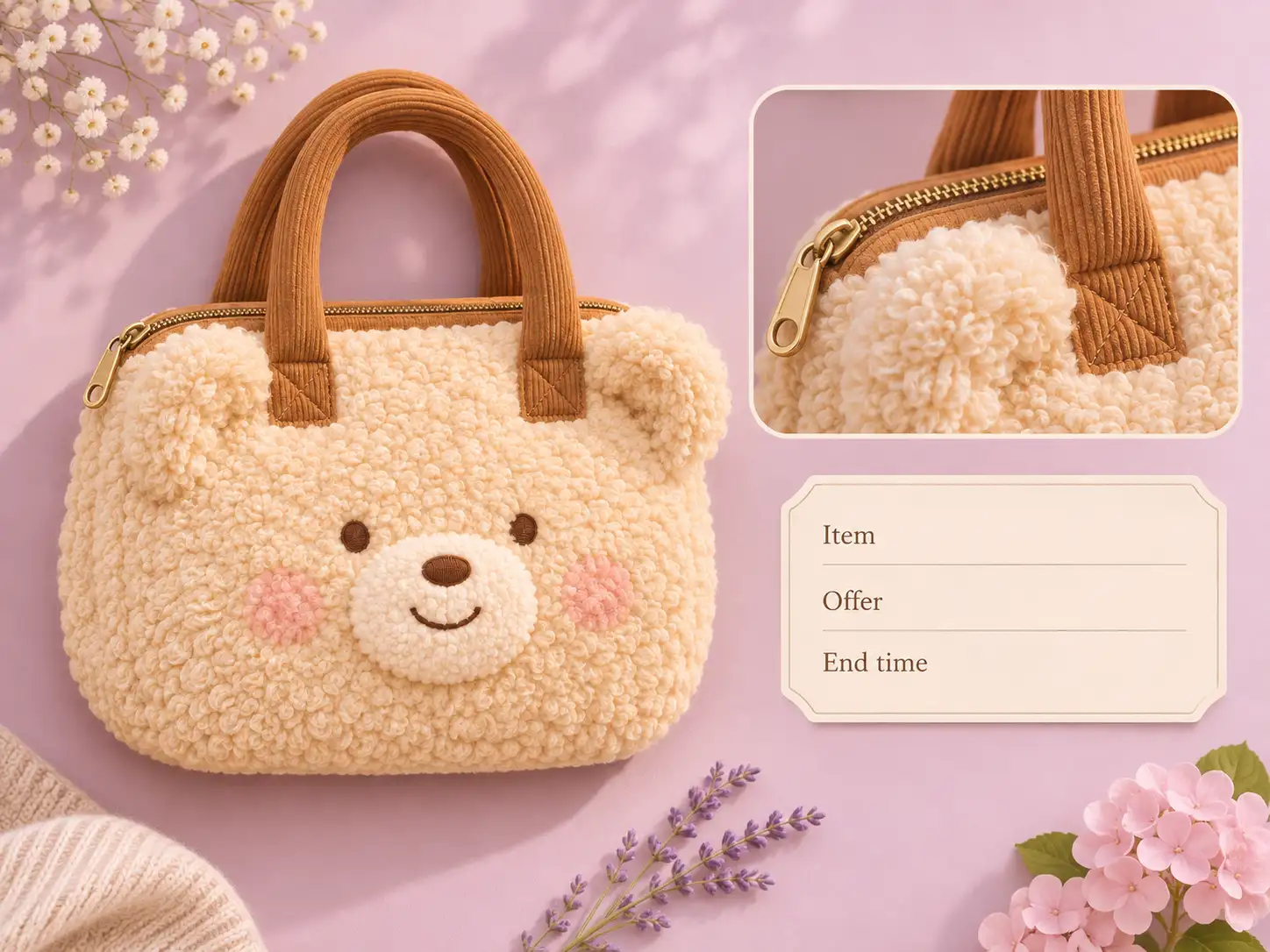
Product photographs show the bear bag and its zip beside fields for the item, offer and end time.

Choose the video your campaign needs first

If you can make one video, start with the launch offer. It gives shoppers enough information to buy today. Add a teaser when a new product needs an introduction. Add a last-call video when people have already visited the product page and the end date gives them a reason to return.

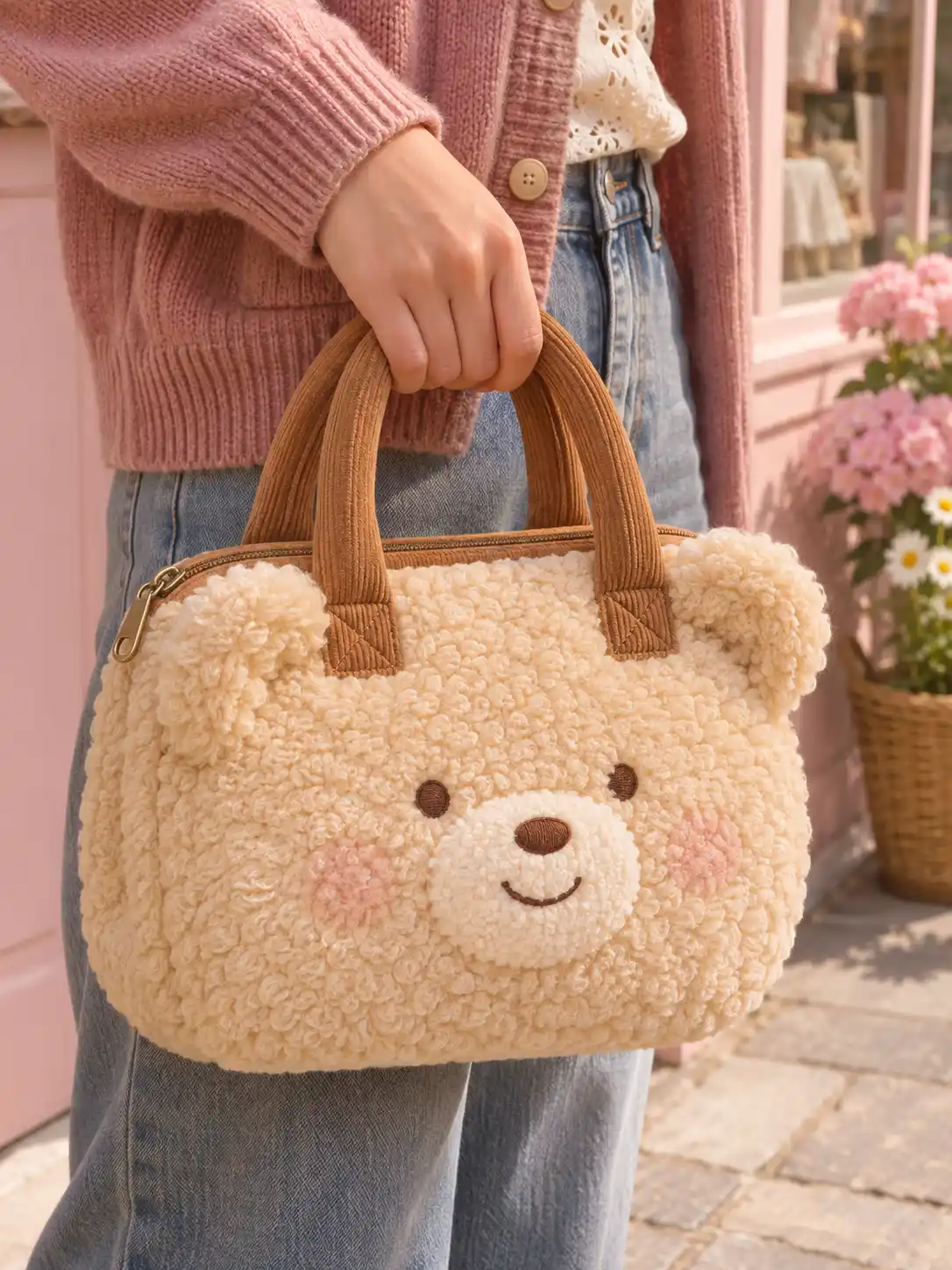
A vertical still of the plush bear handbag sits beside a caption card.

From a fashion launch

What a shop made from its own photos

Murmur Mi received six videos for one launch week. Its Instagram posts earned three times as many saves as the brand’s previous drop.

“Stillmore turned our phone photos into videos that actually looked like our brand.”

Leila, founder of Murmur Mi

See Murmur Mi’s launch and source photos →

Your call

Choose the look. Or leave it with us.

For a specific post

Pick the look for your sale

Choose a specific Inspiration, see its reference clip and submit the photos it requires. Use this route when you have a particular reveal in mind.

For regular content

Let the team choose a style

Enable automatic creation with enough suitable Library photos. Stillmore selects the creative direction and makes the content according to your plan.

Explore Inspirations

Choose a style for your next video.

Good to know

A few things before you start.

Can I use this shot plan for a bundle or a gift with purchase?

Yes. Change the opening frame to match what the customer receives. Show a whole gift set together and give its bundle price. For a gift with purchase, show the gift beside the qualifying item and state the spending threshold. Keep that condition on screen long enough to read.

Which photos should I use for a Black Friday video?

Start with a clear view of the item that qualifies for the offer. Add a second angle if it answers a buying question: an in-hand view for scale, the inside of a box for contents, or a close-up for finish. Check the photo requirements of your chosen Inspiration before submitting.

Can I pick the style for a specific promotion?

Yes. Choose an Inspiration to request that style with the required materials. For ongoing automatic creation, enable the option and supply at least three Library photos for Try it or fifteen for Growth.

How far ahead should I request my videos?

For a Friday launch, count back five days to Sunday, then allow extra time to review the finished post. A manual Inspiration request is delivered within five days once payment, the required materials and the request are complete. Add-on videos are scheduled one at a time, within five days per video. Factor that sequence into a three-post campaign.

Does one request include all three campaign videos?

One finished video comes with its accompanying social caption. The teaser, launch and last-call examples are separate creative ideas. Compare the number of videos and the production schedule in your plan before planning all three posts.

How can I tell which post helped?

Choose a signal that fits the moment. Saves on the teaser can show interest before the offer opens. On launch day, look at product-page visits and completed orders. If your store supports tagged links, give the launch and final reminder separate links. Compare clicks and orders for each post, and count purchases using your store’s order data.

Turn your Black Friday offer into a video

Choose the item, confirm the deal and decide what viewers should see first. Pick an Inspiration to see its required photos. Stillmore makes and reviews the video and delivers it with a caption for your shop to post.

Choose a video style