



How to Add Music to a Video in Clipchamp
SUMMARY
An eight-second clip of a potter packing a mug shows how to add background music while keeping a spoken line clear. Follow the edit in Clipchamp on a computer, from choosing a track you have permission to use to lining up the last chord with the closing shot. Adjust the music on its own track while listening to the potter’s voice. After export, open the saved video on your phone and check that the first chord, the words, and the ending all come through.
Contents
To add music to a video, put the video on the Clipchamp timeline and drag a music file onto a separate track underneath it. Trim the music to the last frame, lower its volume until any speech is clear, then export. The saved video carries the soundtrack with it.
Quick version
- Choose music you have permission to use wherever the video will appear.
- Place the music underneath the picture and trim both ends of the track to fit.
- Play the spoken line and adjust the music volume by ear.
- Export a video file and listen to it outside the editor.
Before you start
You need the original video, a music file or suitable library track, and access to Clipchamp. These instructions follow the personal-account editor on a computer. Open it in Edge or Chrome, or use the Windows app. Keep your original files in a folder you can find again in case Clipchamp asks you to relink them. Microsoft’s guide to editing in Clipchamp
Take a hypothetical eight-second clip from a ceramics shop. A potter wraps a mug, says “This one’s headed to Maine,” then closes the box. The goal is to hear the instrumental as the mug comes into view, catch the destination on the first listen, and have the music finish as the lid closes. Play your own video once and pick the sound or line you want the viewer to hear most clearly.
Step 1: Choose music you can use for this video
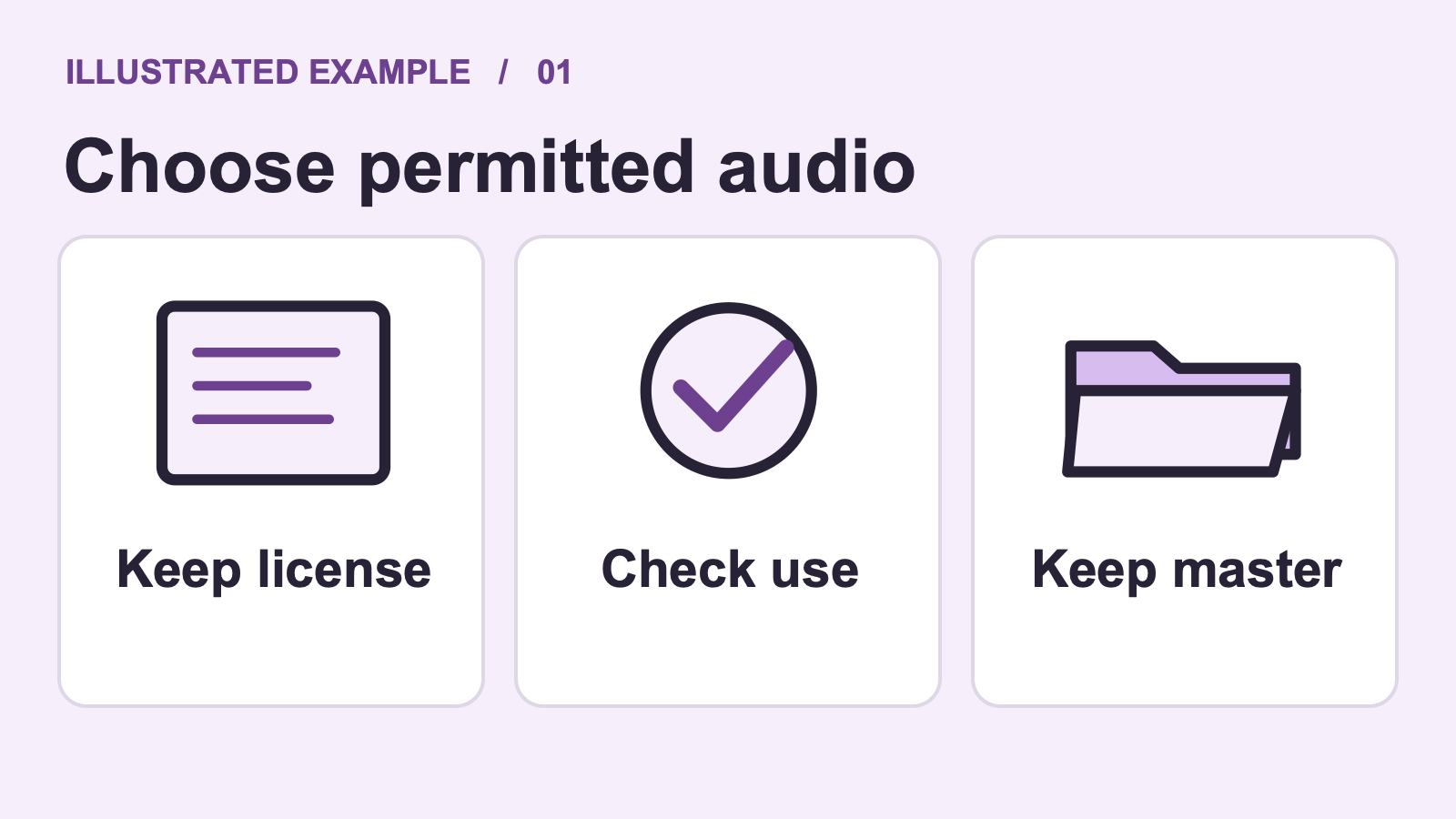
Choose a track whose terms cover the finished video and how you plan to share it. For the packing clip, a simple option is an original guitar phrase the potter wrote and recorded. For licensed music, check that the permission covers your business use and intended channels. If you plan to run the clip as a paid ad, check that use specifically. Save the terms or written permission with the source file so you can find them before a later repost.
Listen for a section that leaves room for the words. In this example, a few quiet chords give “Maine” space that a sung chorus might fill. Keep the full recording, even if you only need eight seconds.
Illustrative example.
Step 2: Place the track under the picture
Start a new video in Clipchamp. Choose Import media, select the video and music files, then drag the video from My media to the start of the timeline. Drag the music onto an empty row below it. Align the left edges so the music starts with the picture. You should see the video and audio stacked during playback. Microsoft’s guide to adding audio
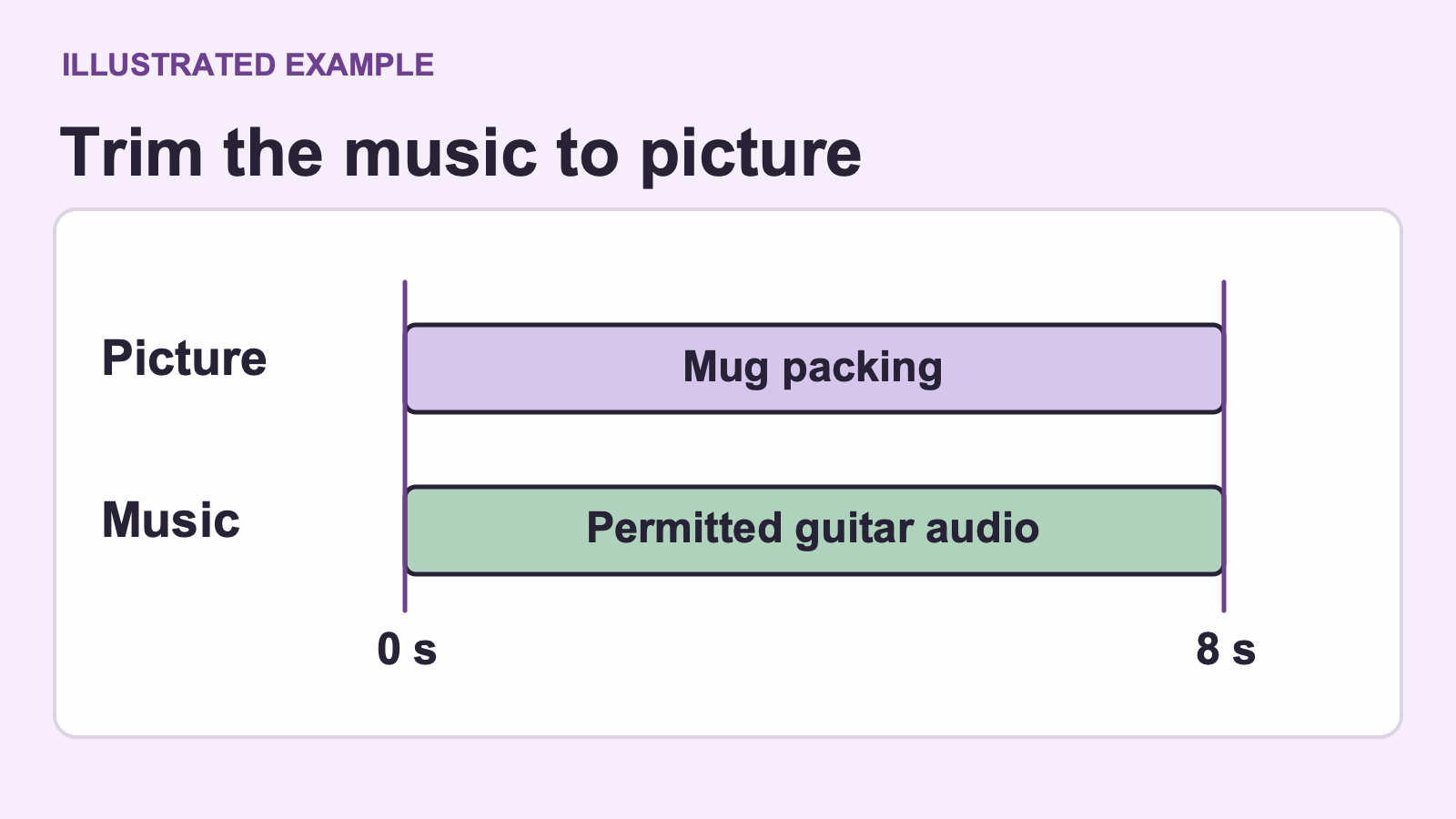
To use a phrase from the middle of a song, drag the audio clip’s left trim handle inward until you reach the phrase, then move the shortened clip back to the start of the video. Pull the right handle to the end of the picture. In the packing clip, both right edges should line up at eight seconds. Play from just before the lid closes and listen for an awkward cut in the middle of a chord.
Illustrative example.
Step 3: Balance the music against the voice
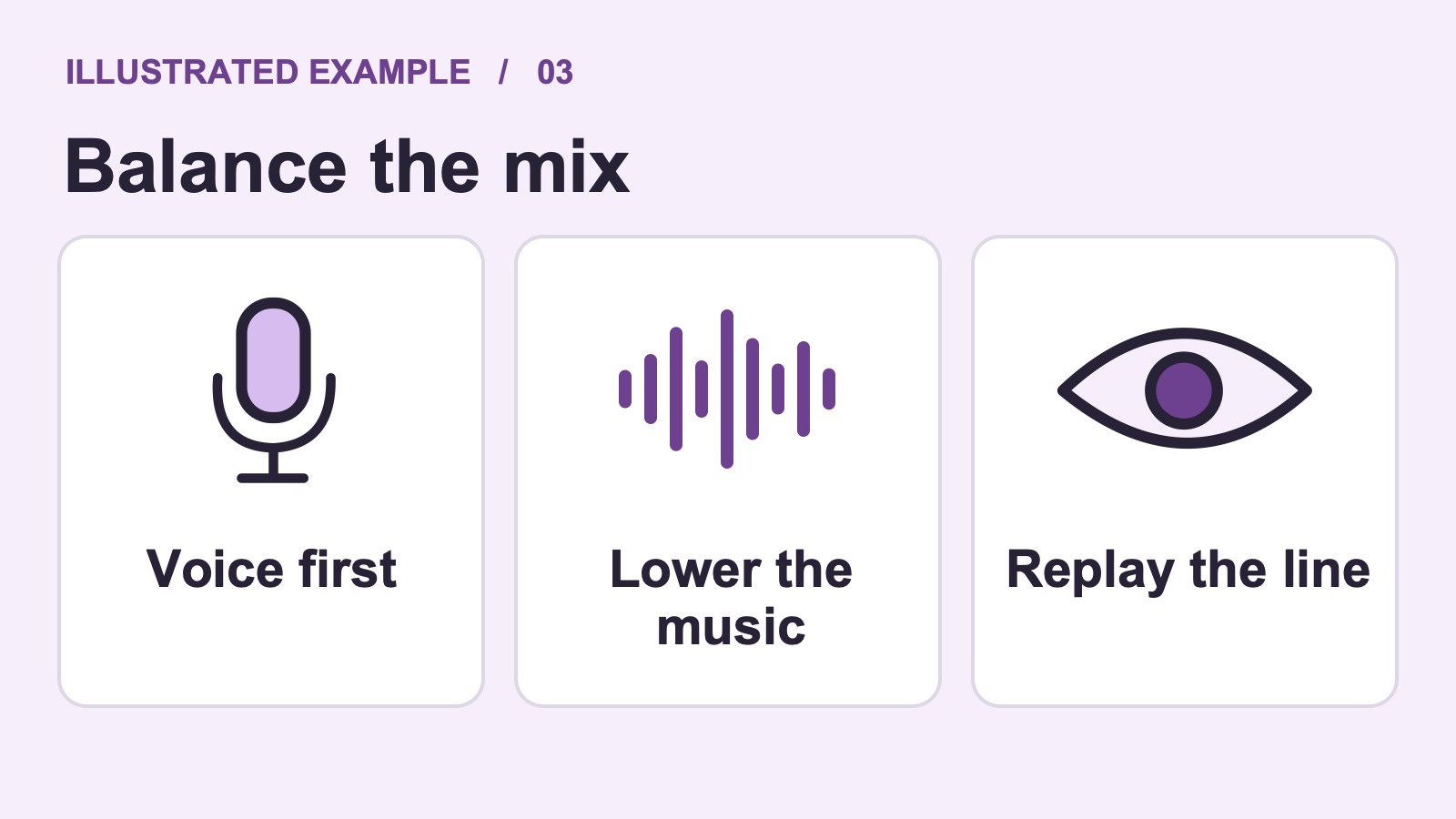
Select the music clip on the timeline, open Audio in the properties panel, and move its volume slider to the left. Leave the video clip’s volume alone for this first pass. Play the line at a comfortable listening level and compare it with the same line in the original file. Microsoft’s guide to clip volume
Keep the speaker volume steady while you compare. Can you make out “headed to Maine” without watching the potter’s lips? If the guitar hides the last word, lower the music another little bit and replay the whole sentence. If a single loud strum still gets in the way, pick a gentler stretch of the recording. Listen from the opening again to make sure you can still hear the music before the potter speaks.
Illustrative example.
Step 4: Export the video and listen to the saved file
Choose Export at the upper right and select a video resolution available for your project. Once the export finishes, save the file with a name you can distinguish from the original, such as mug-packing-with-guitar.mp4. Open that file in a video player and play it from the beginning with sound on. Microsoft’s editing and export instructions
For the mug clip, listen for the first chord, the complete spoken line, and the end of the music as the box shuts. Check the saved movie’s duration against the eight-second original. A black tail with music still playing means you should check for audio extending past the picture. Correct the timeline and export again before sharing the file.
Illustrative example.
Common mistakes
- The song starts after the video ends. Move the audio onto its own row and slide it left until it overlaps the picture.
- Turning down the music also makes the potter quieter. Check which clip is selected. Restore the video’s previous volume, select the separate music clip, and adjust that slider.
- The last chord cuts off sharply. Try ending the excerpt at a natural pause, or apply a short fade-out to the music clip and replay the closing shot.
FAQ
Can I add music to a silent video?
Yes. Place the music underneath the silent video and adjust it to a comfortable level on its own. Check the beginning and end of the export just as you would for a clip with speech.
Can I use music from Clipchamp’s library?
Yes. Open Content library, find the music selection, and add a track to the timeline. Check its availability for your account and the permitted use before building your edit around it.
What if the original video already has music mixed with the voice?
The video’s volume slider changes both together. Use a copy with clean speech if you have one. Without it, listen for competing melodies before deciding whether to add another track.
Do I need to select the song again when I post the video?
The exported file already contains your mix. Leave the platform’s additional music option off if you want to keep that mix. Choosing music for a native photo post is a separate task.
Next step
Play the saved file on the phone you use for posting. Once the words and the ending sound right there, select that checked version for upload. For a future promotion built from your product photos, you can choose a sample direction and have Stillmore’s team produce and review the creative for you. Browse Stillmore Inspiration

About the author
Lan He
I'm Lan. Years of writing promotional and editorial work in the US, mostly for companies with big audiences and bigger expectations — where a single article might reach hundreds of thousands of readers, and where the good ones kept earning traffic long after the campaign ended. I learned what makes a page survive that: one clear audience, one real question, images that show the actual work, and a structure that keeps people reading. Now I write for small business owners who do everything themselves, answering the questions they actually ask: what's worth posting, which photos are worth taking, and how to tell one story across images, video, and words. I've seen good content carry a small company further than its ad budget ever did.
Give them a reasonto stop by.
Send us your phone photos. Get posts ready to share.
See what we can make
Keep exploring
All stories ↗- How it works
How to Write a Video Brief Using Photos You Already Have
A photo of a ceramic brewer sitting on a mug makes a good opening shot. Will the editor know that the shop sells the mug separately? Follow a sample restock announcement from the first sentence of the video brief to the email you send with the originals. Copy the one-page example to map filenames to shots, record the approved wording about what buyers get, and name the person who signs off. Before sending, check that the editor can open each file and that the product link still matches the offer.
- How it works
How to Create a Product Demo Video for a Physical Product
What would a shopper need to see to understand how your product works? Use a folding phone stand as an example to plan three shots that answer one question. Choose a camera angle that shows the moving parts, film the action in one take, and trim the clips without cutting away the moment that matters. Once you save the video, play it on a muted phone. If a viewer misses a step, use what they missed to decide whether to move a label or film the action again.
- How it works
How to review a product video draft and give your editor feedback
Suppose your coffee shop’s new video shows last season’s packaging and ends with an expired discount. Follow this example to check your own draft against a current product photo and the offer customers can use. Copy the feedback table to tell your editor which shot to replace, when it appears and what belongs there. Once you’ve agreed on the required fixes, watch the revised cut from start to finish and record which file is ready to publish or what still needs work.