



How to review a product video draft and give your editor feedback
SUMMARY
Suppose your coffee shop’s new video shows last season’s packaging and ends with an expired discount. Follow this example to check your own draft against a current product photo and the offer customers can use. Copy the feedback table to tell your editor which shot to replace, when it appears and what belongs there. Once you’ve agreed on the required fixes, watch the revised cut from start to finish and record which file is ready to publish or what still needs work.
Contents
Suppose I run a coffee shop and my editor sends a video made from last season's photos. Before I approve it, I check the bag and the offer against what customers can buy today. I send the editor one list of timestamped corrections, then check the revised file before giving the go-ahead.
Quick version
- Identify the draft and gather the current product photo and offer.
- Watch the video for what a customer might see, hear or misread.
- Write one change per note, with the version, time and exact replacement.
- Resolve conflicting requests and tell the editor which fixes the video needs.
- Recheck the revised file and record your decision against its name.
Before you start
Have the video in a player that shows elapsed time, a place to take notes, and the references your editor can use. For the coffee shop, I need a front photo of the bag on the shelf and the offer approved for the day the video will run. A phone helps me judge how much of the offer people can read while it plays.
Step 1: Identify the cut and the current references
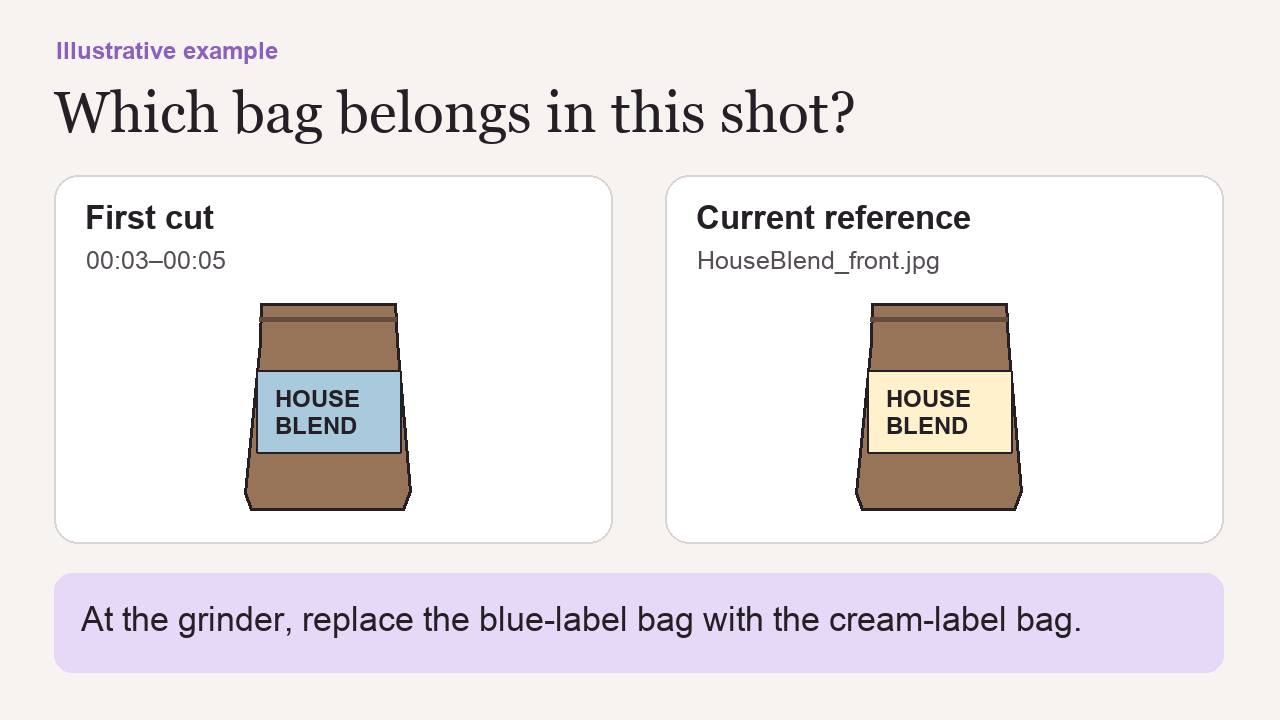
Copy the filename or review version into your notes. I write HouseBlend_v1.mp4 at the top and attach HouseBlend_front.jpg, which shows the current cream label. The older bag has a blue label. Both say "House Blend," so the name alone won't help my editor pick the right shot.
Next I copy the approved offer word for word from the shop's counter card: "Two 250 g bags for $28. In store only through Nov 30." I include a photo of the card so the editor can check the conditions as well as the price.
Step 2: Watch for what a customer could get wrong
Play the draft once at normal speed. At the end, try to say what you're buying, what it costs and where the offer applies. In the coffee example, the last frame promises "20% off online." A customer who follows that instruction will look for a discount the shop no longer offers.
Replay with the references beside the screen. Pause on each view of the bag and compare its label with the current photo. Listen for any mention of the old discount. Then watch muted on your phone. If you have to pause to read the conditions, mark the start and end of the offer card for the editor.
Step 3: Give each correction a timestamp and an exact replacement
Pause where the problem is visible. For a single frame, give the elapsed time. For a shot or a line that stays on screen, give the range in minutes and seconds. Add a detail like "bag beside the grinder" so the editor can recognize the shot. Vimeo lets reviewers attach a comment to a paused frame. In an ordinary player, I copy the time into my notes. Vimeo's guide to time-coded feedback
| Draft | Time | What needs fixing | Change to make | Reference |
|---|---|---|---|---|
| HouseBlend_v1.mp4 | 00:03 to 00:05 | Bag beside the grinder has the old blue label. | Replace that shot with the cream-label bag. | HouseBlend_front.jpg |
| HouseBlend_v1.mp4 | 00:11 to 00:14 | Closing card says "20% off online." That sale has ended. | Use "Two 250 g bags for $28. In store only through Nov 30." Keep the card up long enough to read both lines. | Current counter card, attached |
Step 4: Settle conflicting notes before sending the list
Collect everyone's comments on the same cut. Suppose my coworker wants a shorter closing shot, but I can barely finish reading the offer. I ask the editor to give the offer enough time and drop the request to shorten the shot. A warmer background for the coffee bag is a preference I can save for the next video.
I send both references and the table with a decision: "Hold v1. Please make both corrections and send the revised file for review." This gives the editor one set of instructions, a practice producer Lana Oliver also recommends in her client guide to reviewing a video.
Step 5: Recheck the new version and record the decision
Open the revised file and match each correction to the shot it describes. The closing card might start later in HouseBlend_v2.mp4. Find it by the offer text, then play the whole cut once more. Can you read the quantity, price, location and end date before the card disappears?
When both corrections pass, I save a dated note with the change list: "Approved to publish HouseBlend_v2.mp4 for the in-store offer through Nov 30." If the new card still cuts off the date, my note reads: "Hold HouseBlend_v2.mp4. At 00:15 the end date is cropped. Move ‘through Nov 30’ fully into view and send v3 for review."
Common mistakes
- Giving the editor a screenshot without the file name. A still of the bag could belong to either cut. Add the version and time to the image or its accompanying note.
- Checking only the corrected shot. The same blue bag might appear in the opening frame. Play the full revision and flag any remaining appearance with its own time.
- Approving with a thumbs-up. Someone may read it as permission to post. Name the file and say whether it is approved to publish or on hold.
FAQ
What if the player only shows whole seconds?
Give the nearest second and describe the first visible sign of the issue, such as the blue bag entering from the left. Attach a paused screenshot if two shots fall within that second.
What if my product page and counter card show different offers?
Hold approval until the person responsible for pricing confirms which terms apply on the publication date and sales channel. Send the confirmed wording to the editor and have the shop correct the outdated customer-facing offer.
How do I report an error in a video delivered by Stillmore?
Use Support in your Stillmore account and include the file, timestamp and reference. Stillmore checks work before delivery and corrects clear production errors. Try it and Growth exclude additional revisions for personal creative preferences. Custom Studio includes revisions within the scope agreed with your producer.
Does approval mean the video is scheduled to post?
Approval records permission to use that file. With Stillmore, the merchant downloads and publishes the finished work. Check that the offer will still be valid on the scheduled date.
Related tutorial
For the next coffee promotion, set aside the current bag photo with the approved cut so the old packaging doesn't slip back in. How to reuse photos with Stillmore

About the author
Lan He
I'm Lan. Years of writing promotional and editorial work in the US, mostly for companies with big audiences and bigger expectations — where a single article might reach hundreds of thousands of readers, and where the good ones kept earning traffic long after the campaign ended. I learned what makes a page survive that: one clear audience, one real question, images that show the actual work, and a structure that keeps people reading. Now I write for small business owners who do everything themselves, answering the questions they actually ask: what's worth posting, which photos are worth taking, and how to tell one story across images, video, and words. I've seen good content carry a small company further than its ad budget ever did.
Give them a reasonto stop by.
Send us your phone photos. Get posts ready to share.
See what we can make
Keep exploring
All stories ↗- How it works
How to reuse your business photos with Stillmore
What’s for dinner, and where would we sit? A restaurant can answer both questions with photos it already has. Using photos from Osteria Sole, this guide shows how to turn those questions into two briefs, each with its own lead image and details to confirm. You’ll also see how to compare the room photo with a frame from the finished video and decide when a change to your menu or space calls for a fresh shot.
- How it works
How to fix a rejected DoorDash menu photo
When DoorDash flags an item photo, start with the order a customer would actually receive. A bowl of mushroom pasta gives you a way to spot extras that could be mistaken for part of the meal. Use the edge of the bowl and the size of the exported file to decide whether a crop will work or whether to plate another serving. Then check the corrected photo against the rejection notice and send it back for review on the right listing.
- How it works
How to photograph a shiny product label without glare
A reflection can show the curve of a jar or hide the words a customer came to read. Two photographs of the same Nutella product show the difference. Use them to judge a bright streak on your own packaging, then try a pair of shots beside a window. The guide walks through keeping the label square, checking one line at phone size, and choosing between a tighter crop and a fresh photo before you send the files to an editor.