



How to Make a Reel on Instagram From Your Own Clips
SUMMARY
Make a Reel in the Instagram mobile app using clips already on your phone. Follow a shop window example from the first wide shot to a close-up of striped linen and a final view of the entrance. Trim each shot, watch the cuts with the sound off, and pick a sharp frame for the cover. Before you share, check the caption and who can see the post. If Instagram reports an upload failure, check your profile for the Reel before you retry.
Contents
To make a Reel on Instagram, open the mobile app, tap Create (+), choose Reel, and select clips from your phone. Trim them into the order you want, preview the whole video, then choose a cover, write a caption, and check who can see it. After you tap Share, open the Reel from your profile to check playback.
Quick version
- Open the right Instagram account and select your clips in the Reel creator.
- Put the finished result first, then trim each clip to the part people need to see.
- Watch with sound on and off. Set the cover, caption, and audience.
- Tap Share when you're ready to post. Find the Reel on your profile and play it to the end.
Before you start
You'll need the Instagram mobile app, access to the account that will publish the Reel, and footage you have permission to share. Open each clip in your phone's gallery first. Watch with the sound on. A customer reflected in a window or a conversation caught on the shop floor can be easy to miss while filming.
For a hypothetical shop window refresh, gather three vertical clips: the finished display seen from the sidewalk, a close-up of the striped linen in the display, and a view of the entrance. Keep the original files on your phone. Decide what a passerby should recognize after watching. Here, it's the striped linen and the doorway beside the window.
Step 1: Start a Reel and select your clips
Open your Instagram profile and check the username, especially if you manage your shop and personal accounts on one phone. Tap Create (+) and choose Reel. The control's position can vary, so look for the creation menu and read the selected format before you add anything.
Open the gallery from the Reel creator. Select the window, linen, and entrance clips in that order. If your gallery lets you pick only one at first, start with the window and add the other two clips in the editor. Continue until you can play all three in a single preview. If a clip is missing from the picker, first check that Instagram has permission to access that file on your phone.
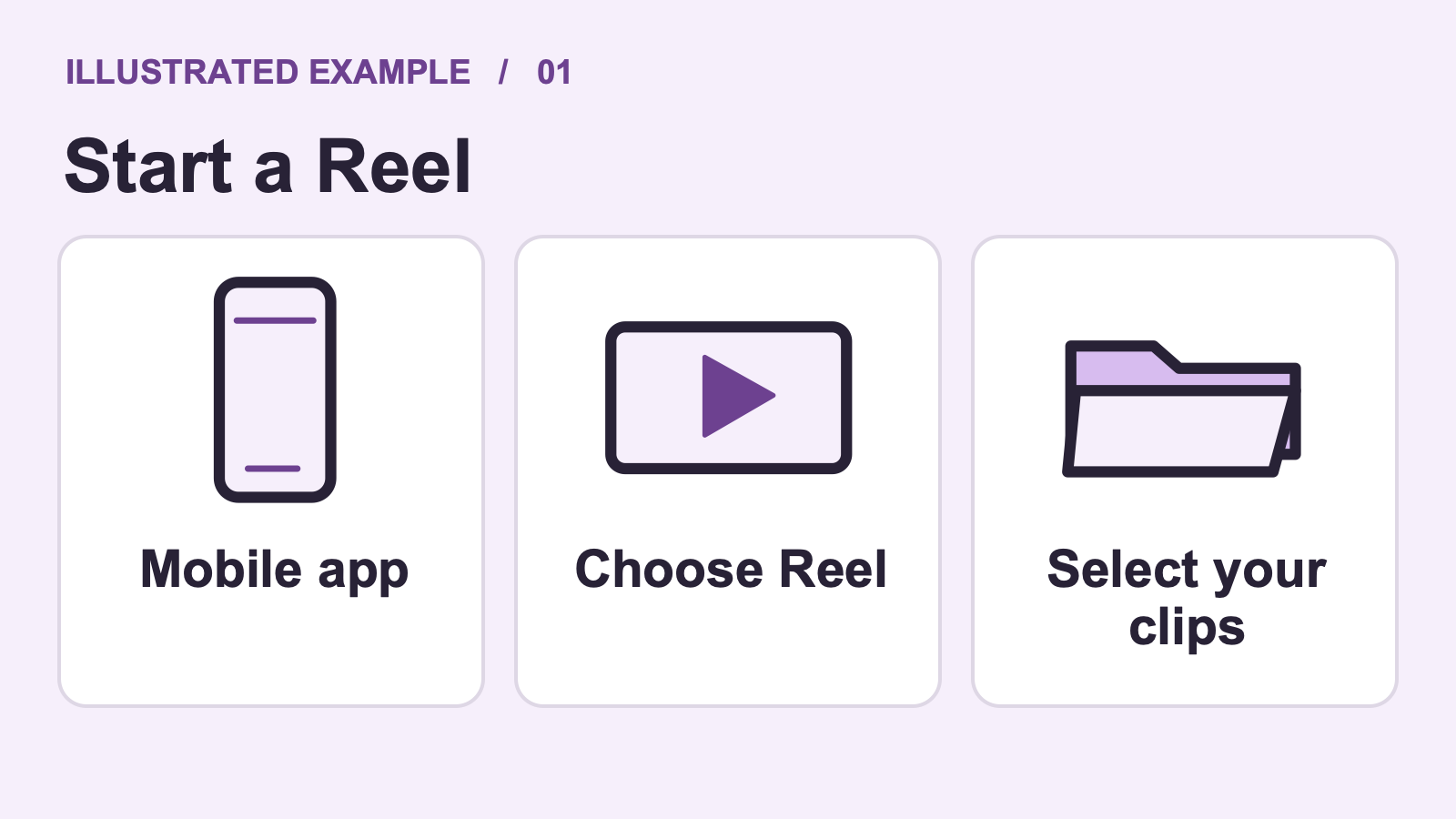
Illustrative example.
Step 2: Build the sequence and trim each shot
Open the clip editor and tap the window shot. Move its starting edge past the moment you raise the phone, until the first frame shows the finished display. Move the ending edge back to just before the camera swings away. Repeat that trim on the linen and entrance clips. Use the editor's reorder control if the thumbnails are out of sequence.
Try two seconds on the window, three on the linen, and two on the entrance. Those timings are a starting edit. Play the cuts without pausing. Can you see the stripes clearly and recognize the door a shopper would walk through? Give the last clip another second if the sign only comes into focus near the end.
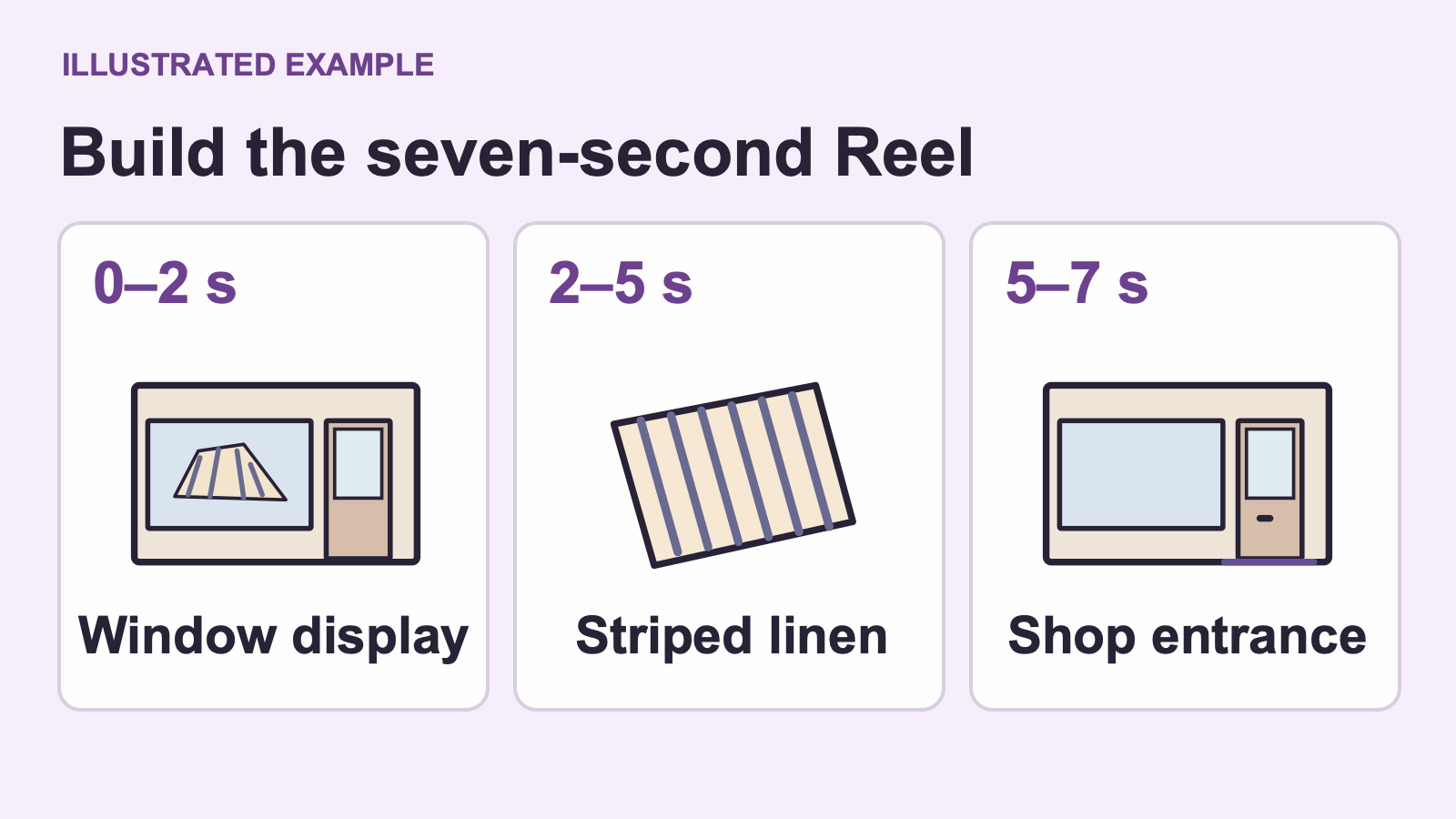
Illustrative example.
Step 3: Preview the Reel and set the posting options
Add a short line to the opening shot, such as “New in our window.” Place it where it leaves the display visible. Play the video at normal phone size with the sound off. You should be able to read the line before the linen appears. Then listen once. Keep the original sound if it belongs in the post, or mute the clip audio in the editor for a silent version.
Continue to the sharing screen and choose a cover frame that shows the whole window. Check the crop in any profile preview offered. Write a caption that adds something the video can't tell a passerby, such as “The striped linen in our window is on the rack just inside the door.” Verify that detail in the shop. Review the audience and any sharing destinations shown on your account before posting. Meta's guide to sharing Reels
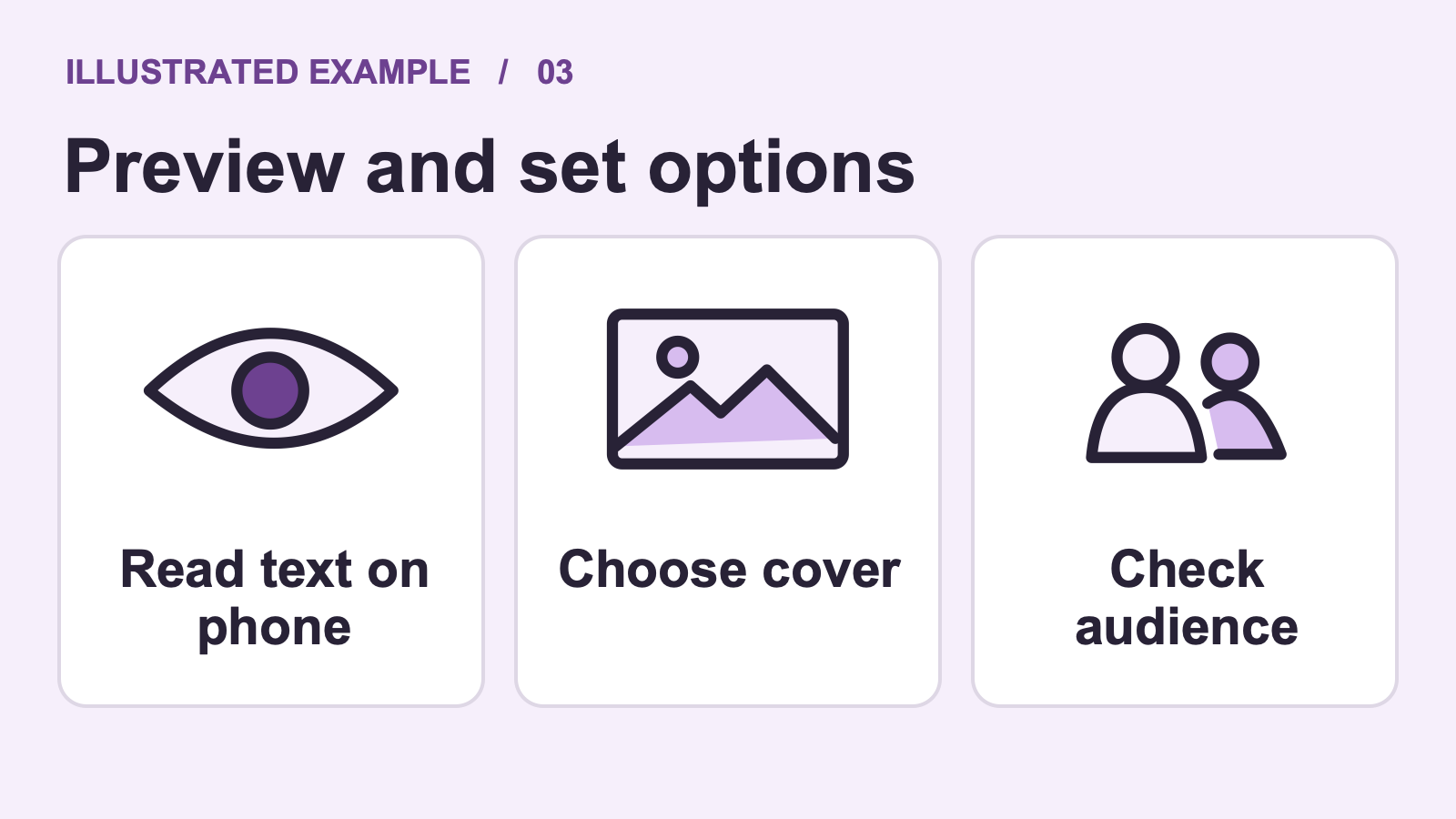
Illustrative example.
Step 4: Share the Reel and verify playback
Tap Share once you're ready for your chosen audience to see the Reel. When the upload finishes, open your profile's Reels tab, select the window cover, and watch through the entrance shot. Read the caption below the video. That check catches a wrong take, a clipped ending, or a caption pasted from an older post.
If Instagram reports an upload failure, keep the clips and any available draft. Refresh the profile and check the Reels tab before trying again so you don't publish a duplicate. If the Reel is absent and the app still reports failure, reconnect to a working network and retry from the failed upload or draft, whichever the app offers.
Illustrative example.
Common mistakes
- Choosing a cover from the middle of a camera move. The window may look sharp during playback while its cover looks blurred. Scrub to a steady frame and inspect the thumbnail before sharing.
- Turning down the phone volume to remove a conversation. This changes what you hear on your phone. Mute the clip in the editor, then turn the phone volume back up and replay the preview to confirm.
- Assuming a saved draft has gone live. A draft holds the edit for later. When you're ready, reopen the draft, check the sharing options, and tap Share.
FAQ
Can I post a Reel if the whole video is already edited?
Yes. Choose Reel, select that one finished video from your gallery, and play it through in the preview. You can then choose its cover, add the caption, and share it.
Can I make the window Reel from photos?
Yes. Select the window, detail, and doorway photos from the Reel creator's gallery. Adjust how long each stays on screen, then preview the sequence. Check the edges of each photo to make sure the portrait crop keeps the important detail.
Who can see a Reel from a private account?
A private account limits its Reels to approved followers. A public account can reach people who don't follow it. Check your account's privacy setting and the audience offered for this particular Reel before sharing.
Why does the window cover look different when I open the Reel?
The cover is the image people see before playback. The video starts with the first frame of your edited sequence. To make the two match, choose a frame from the trimmed opening shot as your cover.
For your next shop update
If you have photos for the next display and want someone to make the video, choose a sample in Stillmore's Inspiration library and supply the photos it calls for. The team creates and reviews the piece. You decide when to post it from the shop's Instagram account. Browse Stillmore Inspiration

About the author
Lan He
I'm Lan. Years of writing promotional and editorial work in the US, mostly for companies with big audiences and bigger expectations — where a single article might reach hundreds of thousands of readers, and where the good ones kept earning traffic long after the campaign ended. I learned what makes a page survive that: one clear audience, one real question, images that show the actual work, and a structure that keeps people reading. Now I write for small business owners who do everything themselves, answering the questions they actually ask: what's worth posting, which photos are worth taking, and how to tell one story across images, video, and words. I've seen good content carry a small company further than its ad budget ever did.
Give them a reasonto stop by.
Send us your phone photos. Get posts ready to share.
See what we can make
Keep exploring
All stories ↗- Social media
How to Make a YouTube Short on Your Phone
Start with two clips in your camera roll. In the pottery studio example, the first shows a potter shaping clay and the second shows the finished blue bowl. Follow the Android steps to import both clips, trim each one and listen as the picture cuts from the wheel to the glaze. If you already have a finished edit, you can upload that file directly. Choose the audience setting, upload privately, then play the Short from your channel to check the sound and the final frame.
- Social media
How to Write an Instagram Caption for an Event Flyer
Could a guest plan a visit from your Instagram caption alone? Follow a fictional bookshop as it checks a workshop flyer against its booking page, fixes a conflicting start time and writes a post guests can use to reserve a seat. The example pairs a complete caption with alt text for the illustration. Use the four-question checklist with the flyer hidden to see whether a reader can tell what the event costs, when and where to arrive, and how to get a spot.
- Social media
How to Add Clear Entrance Photos to Google Maps
Learn how to help first-time visitors recognize your street-level or shared-building entrance on Google Maps using a verified Google Business Profile. This guide walks you through mapping real customer approaches on foot, photographing every turn, outer facade, lobby, and suite door during open hours, and selecting accurate, natural JPG or PNG frames that make sense in any order without arrows or diagrams. You will also learn how to upload photos on desktop, monitor owner-only Live status, confirm public visibility, avoid common mistakes, and reuse entrance shots for social posts.