



How to Add Clear Entrance Photos to Google Maps
SUMMARY
Learn how to help first-time visitors recognize your street-level or shared-building entrance on Google Maps using a verified Google Business Profile. This guide walks you through mapping real customer approaches on foot, photographing every turn, outer facade, lobby, and suite door during open hours, and selecting accurate, natural JPG or PNG frames that make sense in any order without arrows or diagrams. You will also learn how to upload photos on desktop, monitor owner-only Live status, confirm public visibility, avoid common mistakes, and reuse entrance shots for social posts.
Contents
If customers keep walking past a street-level or shared-building entrance, a small set of real exterior photos can help them spot your door. Using a verified Google Business Profile on desktop and accurate JPG or PNG images, you will publish clear approach and entrance views visitors can recognize in any order.
Quick version
- Walk your approaches and list every turn, threshold, and doorway a visitor must recognize.
- Shoot sharp exterior photos from real approach directions, including shared building entries and suite doors.
- Keep only natural, standalone frames without overlaid arrows, sequence numbers, or tight logo crops.
- Upload the files on desktop, verify owner-side
Livestatus, and confirm public visibility.
Before you start
Required:
- Control of a verified Google Business Profile for your business.
- A phone or camera to capture accurate, in-focus JPG or PNG photos.
Recommended:
- Walk your approaches during normal open hours so open doors, turned-on signs, and awnings match what arriving customers see.
- Confirm your map pin is already in the right spot, since entrance photos help people spot your door nearby rather than fixing a misplaced pin.
Step 1: Map every approach and turn on foot
Start outside where first-time visitors actually arrive—a nearby bus stop, parking lot, or either end of your block. Walk toward your shop as if you have never visited before, and note every spot where someone could hesitate: choosing a side of the street, noticing a recessed alcove, stepping through an outer building entrance, or turning down an interior corridor.
You are ready to shoot once you have a written list covering every real approach direction, turn, and doorway to your entrance.
Step 2: Photograph each approach, threshold, and door
With your list in hand during open hours, shoot bright, in-focus photos from the directions customers genuinely walk or drive in from. Google's Business Profile photo recommendations suggest exterior views from actual customer approaches and offer at least three good exterior photos as helpful guidance rather than a strict upload limit. Stand back far enough to keep neighboring storefronts, street numbers, or awnings in frame. If your business sits inside another building, capture the outer street facade with its address, the shared lobby or directory entrance, and your suite door in hallway context.
Before sorting your shots, check that every viewpoint on your list has at least one sharp, well-lit, true-to-life frame showing clear landmarks around the doorway.
Step 3: Choose standalone frames that work out of order
Keep only frames a newcomer can understand on their own. Because selecting a cover photo does not guarantee that it will be the first image, make sure no photo depends on appearing in a fixed sequence. Cut tight close-ups of a doorknob or logo that hide the building around it, skip heavy filters or significant edits per Google's Business Profile photo upload guidelines, and leave out drawn diagrams, sequence numbers, or overlaid arrows.
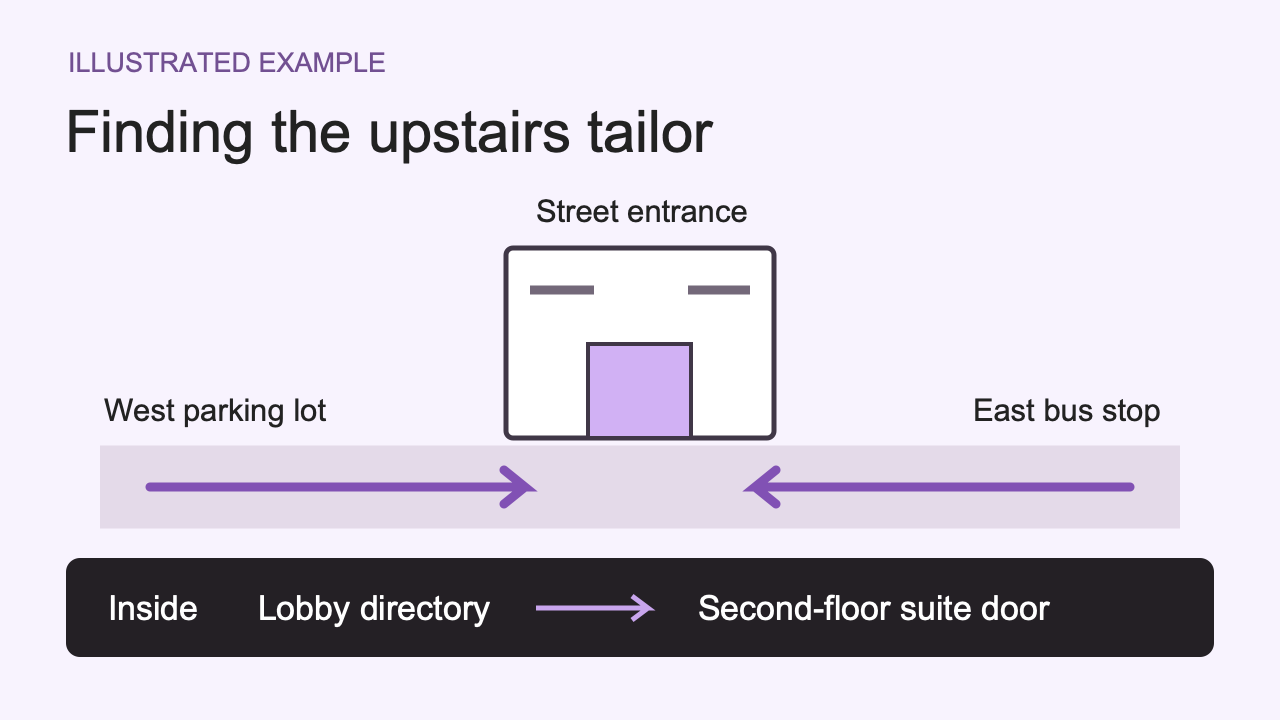
Hypothetical example: Suppose an invented second-floor tailor sits inside an office building off Cedar Street. Instead of three close-ups of the hallway sign, a useful set shows (1) the outer building facade approached from the east bus stop along Cedar Street, (2) the same outer entry approached from the west corner parking lot, (3) the ground-floor lobby directory beside the stairs, and (4) the second-floor suite door with surrounding hallway trim. Each frame works even if a visitor sees it alone.
Test your selection by flipping through your chosen JPG or PNG files in shuffled order: if someone unfamiliar with your shop can still tell which street side, outer door, or hallway they are looking at without captions, the set is ready.
Step 4: Upload on desktop and check both status and public view
Sign in on a desktop browser to the account that manages your verified profile and follow Google's desktop upload steps: search your business name and city on Google Search or Maps, open your profile, go to Photos > Add photos, and select your files.
Watch your owner dashboard as uploads move from Pending to Live. If an item is marked Not approved, do not simply resubmit the same file—diagnose which Business Profile policy applies before adjusting or replacing it. Keep in mind that Pending, Not approved, and Live are owner-only statuses; customers do not see a Live badge on Maps.
Finish by opening your business listing in a signed-out or private browser window and confirming visitors can actually see your new approach and entrance photos on the public profile.
Common mistakes to avoid
- Expecting photos to fix a wrong map pin: Entrance shots help visitors spot your door once they reach the block, not when directions drop them on the wrong street. Check your pin placement separately in your Business Profile.
- Cropping out the street and neighbors: Tight frames around a sign or handle strip away the awnings, street numbers, and adjacent doors customers rely on. Step back so stationary context stays visible.
- Adding arrows, numbers, or drawn route maps: Overlaid graphics and heavy alterations obscure real-world cues and risk policy or quality rejections. Let natural angles and physical building signs guide visitors.
- Relying on one photo staying first: Selecting a cover photo does not guarantee that it will be the first image, so any frame that depends on a prior "step one" photo can confuse visitors. Keep every frame self-explanatory.
Next step: Reuse these photos for social posts
Once your entrance and approach shots are visible on Maps, the same clear views can help new followers find you on social channels. To organize existing images into a short walkthrough, see how to make a store-tour video from photos. If you prefer not to handle editing yourself, Stillmore offers subscription-based creative production for independent businesses: you upload photos you already have, our team handles creative selection, production, and pre-delivery checks for videos, images, and captions, and you publish the finished posts to your own social accounts.
Frequently asked questions
Should I photograph my entrance from both directions along the street?
Yes, shoot every real direction customers walk or drive in from. Google recommends exterior photos from actual customer approaches, and capturing both directions helps visitors spot recessed doors, side alleys, or angled signs before walking past.
What should I show if my entrance is inside a shared building?
Photograph each threshold between the sidewalk and your door. Include the outer building facade with its street number, the shared lobby or directory entrance where visitors turn inside, and your suite door showing surrounding hallway context.
Can I add arrows, step numbers, or a route diagram to Google Maps photos?
Avoid uploading diagrams, sequence numbers, or overlaid arrows, and stick to real, in-focus JPG or PNG photos. Google advises keeping photos accurate without significant alterations or filters, so let physical street numbers and building landmarks point the way.
Can I choose which entrance photo appears first?
No. Selecting a cover photo does not guarantee that it will be the first image. Keeping every uploaded photo clear and recognizable on its own ensures visitors can orient themselves regardless of which image they see first.
Will clear entrance photos fix customers going to the wrong map pin?
No, entrance photos only help visitors recognize your door once they arrive near the right building. If directions send people to the wrong block or side street, check and update your address or map pin directly in your Business Profile.

About the author
Lan He
I'm Lan. Years of writing promotional and editorial work in the US, mostly for companies with big audiences and bigger expectations — where a single article might reach hundreds of thousands of readers, and where the good ones kept earning traffic long after the campaign ended. I learned what makes a page survive that: one clear audience, one real question, images that show the actual work, and a structure that keeps people reading. Now I write for small business owners who do everything themselves, answering the questions they actually ask: what's worth posting, which photos are worth taking, and how to tell one story across images, video, and words. I've seen good content carry a small company further than its ad budget ever did.
Give them a reasonto stop by.
Send us your phone photos. Get posts ready to share.
See what we can make
Keep exploring
All stories ↗- Social media
How to Write an Instagram Caption for an Event Flyer
Could a guest plan a visit from your Instagram caption alone? Follow a fictional bookshop as it checks a workshop flyer against its booking page, fixes a conflicting start time and writes a post guests can use to reserve a seat. The example pairs a complete caption with alt text for the illustration. Use the four-question checklist with the flyer hidden to see whether a reader can tell what the event costs, when and where to arrive, and how to get a spot.
- Social media
How to fix an outdated menu photo on Google Maps
An old menu photograph can keep showing prices you no longer charge. This guide helps you identify who uploaded it, choose the appropriate removal or reporting route, and add a readable current menu. Follow a hypothetical cafe example to check the menu link and written prices, then record what guests can actually see. A new upload and a removal request can have different outcomes, so the final checklist keeps completed changes separate from anything still awaiting review.
- Social media
Turn a 16:9 photo into a Reel and test its reach
A wide dining-room photo becomes a six-second vertical Reel in this walkthrough. Play the sample, see how the opening question leads into a closer view, and use the same sequence with your own photo. Then change one line and compare accounts reached and average watch time after the same interval. If your goal is menu or store visits, the guide explains which link data you need to measure those separately.