



How to fix an outdated menu photo on Google Maps
SUMMARY
An old menu photograph can keep showing prices you no longer charge. This guide helps you identify who uploaded it, choose the appropriate removal or reporting route, and add a readable current menu. Follow a hypothetical cafe example to check the menu link and written prices, then record what guests can actually see. A new upload and a removal request can have different outcomes, so the final checklist keeps completed changes separate from anything still awaiting review.
Contents
Check who uploaded the outdated menu photo before you act. Delete your own upload or request Google's review of a customer's photo, then add the current menu. Track the old image and the replacement separately: a new upload can be visible while an old customer photo still remains.
Quick version
- Identify the photo and its uploader.
- Prepare an accurate current menu.
- Handle the old photo according to its source.
- Submit the replacement menu.
- Cross-check links and written prices.
- Verify the public result and schedule any follow-up.
Before you start
When an older photograph of a printed menu remains on your Google listing, guests may read outdated prices before visiting or ordering. Fixing the issue takes more than uploading a fresh image, because Google treats business-uploaded photos and customer-uploaded photos differently.
Before changing your listing, make sure your Google Business Profile is verified, since photos and videos appear publicly only after profile verification. Use a desktop computer if possible, as it makes checking photo attribution and editing menu URLs much simpler.
Consider a hypothetical cafe that has updated its printed lunch menu while an old photo remains visible online. Keep a separate record for the old photo and the replacement: one can change while the other is still awaiting review.
Fix the photo and check the result
Step 1: Identify the outdated photo and its source
Open the old image on your listing in Google Search. Its bottom-left attribution identifies the source, as Google's photo management guide explains. Record the uploader and the specific menu page. If the attribution is unclear, keep the source marked unknown while checking which account supplied it.
You have completed this step when you have recorded the exact outdated image and confirmed whether your restaurant or a customer uploaded it.
Step 2: Prepare one current menu to use as your reference
Set aside one dated, current master copy of your menu as a clean PDF or a well-lit, in-focus photograph. Compare the item names, portion descriptions, and prices on that file against what you charge at your register today. Avoid squeezing a full menu page into a small square crop, which can make prices unreadable on mobile screens.
This step is complete when you have one readable, dated reference file on your computer that matches your current dining room prices.
Step 3: Delete your upload or report a customer's photo
If your business uploaded it, find your listing on desktop Search or Maps, open Photos, select that image and confirm Delete.
For a customer upload, use Photos > View all photos in your Business Profile on Search, select the image, then Report a problem. Choose a reason that honestly matches and submit once. Google's removal instructions explain that review can take several business days; removal is not assured. Keep the submission date in your notes.
This step is complete when your own outdated upload disappears from your manager view, or when you have submitted a single report for the customer photo and noted the submission date.
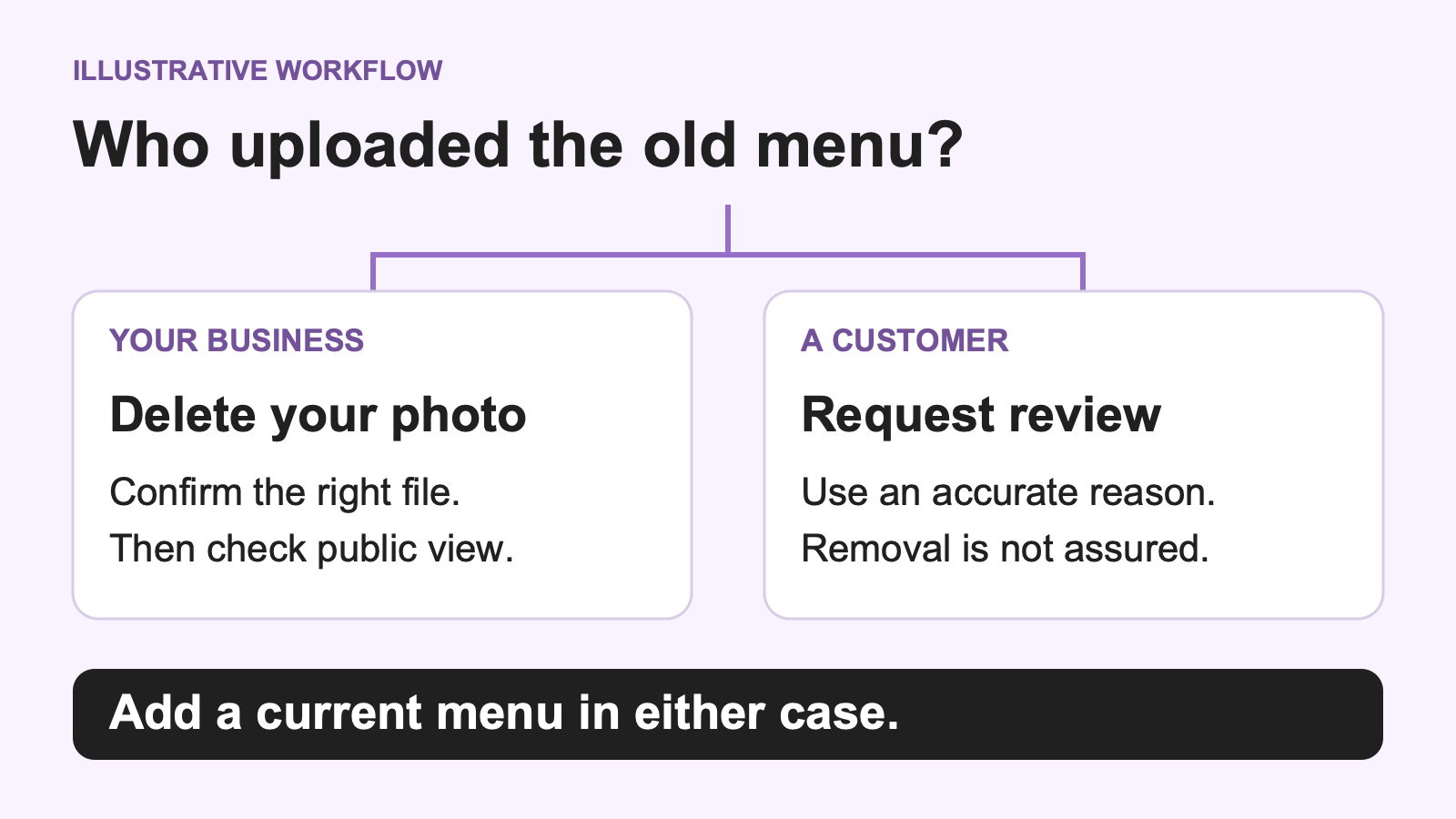
Illustrative workflow, not a Google interface.
Step 4: Add the current menu photo or PDF
Use Edit menu > Photos of menu in your Business Profile to submit the current photo or PDF. Google's menu editor guide describes this route. Choose the reference file from Step 2, not an older copy with a similar filename.
For photos, Pending and Not approved mean not public; Live means public. Google says photos may take 24 to 48 hours to appear. Check a PDF's public accessibility separately rather than assuming it uses the same labels.
You have finished this step when the current file has been submitted without an upload error. Public visibility is a separate check in Step 6.
Step 5: Check the menu link and written prices
Check written prices in Edit menu and the desktop Menu link under Edit profile > Contact. These are separate from your photo. If multiple menu sources appear, inspect the preferred-source choice in Full menu. Compare what each source actually says with your current reference; note which one needs correction.
This step is complete when your typed menu prices and external menu URL match the reference menu from Step 2.
Step 6: Reopen the listing as a customer
Open a private or incognito browser window where you are signed out of your Google account, then view your restaurant on Google Maps and Search. Check what a guest can actually read right now. In our hypothetical cafe lunch-menu example, the newly uploaded lunch menu might be Live and legible, while the reported customer photo of the old printed menu remains visible during review. Record that exact mixed outcome in a check log rather than treating the task as finished.
| Area | Record now | Next action |
|---|---|---|
| Old photo | Uploader, action taken, still visible or gone | Recheck any pending review |
| Current menu | Readable to guests, or not yet visible | Check upload status while signed in |
| Links and prices | Match the current menu, or identify the mismatch | Correct the specific source |
Finish this check when the three rows record the public result and any follow-up you still need. Upload status labels belong to the manager view, so check those separately while signed in.
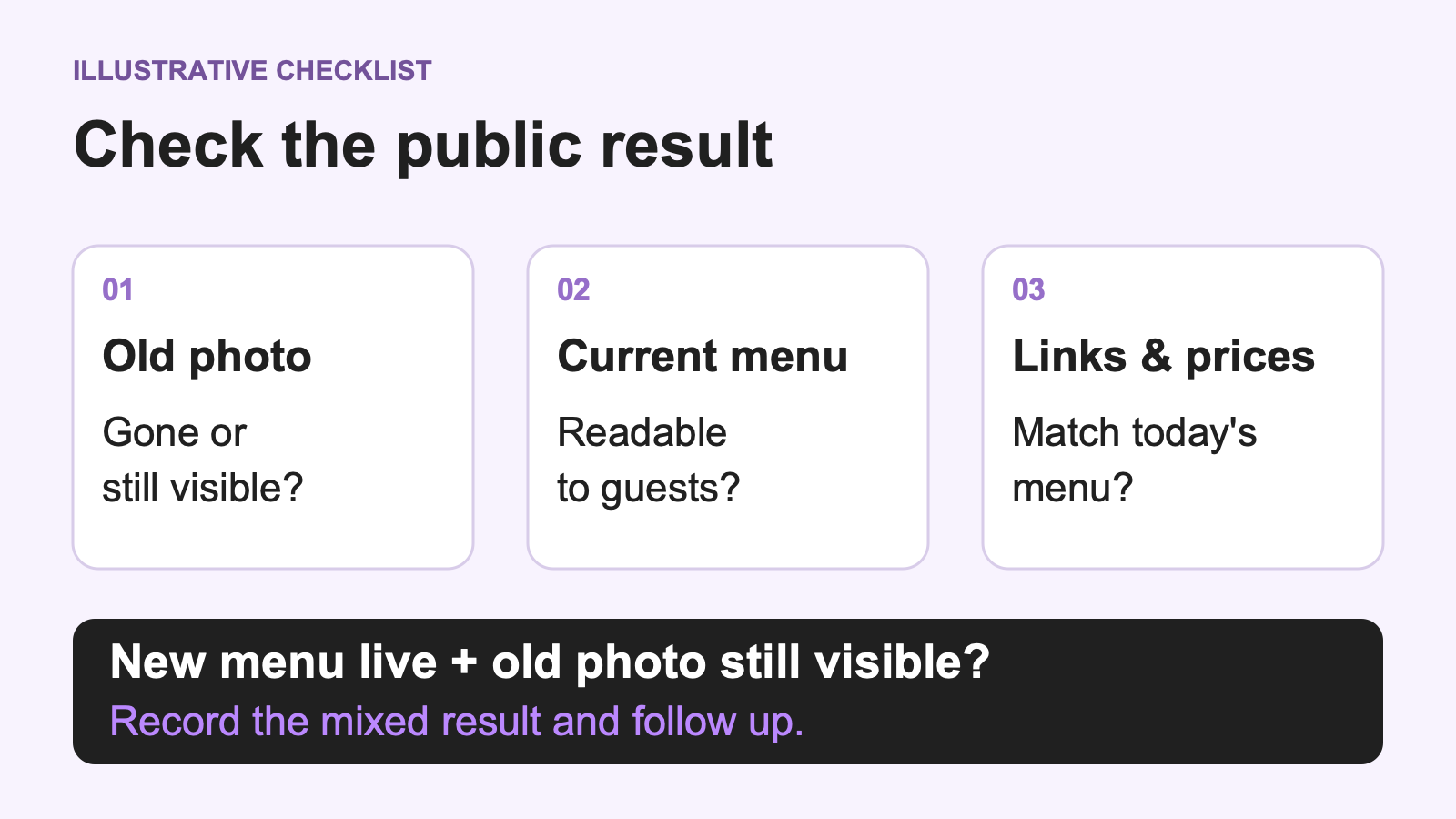
Illustrative checklist.
Common mistakes
- Repeatedly reporting the same photo can delay review. Keep one request and its date in your log.
- Choosing a report reason that does not describe the content gives Google inaccurate information. Use an honest reason from the available options.
- Cropping a full menu into a small square can make prices unreadable. Keep its natural proportions and inspect the smallest type.
- Treating an upload confirmation as the final result misses what guests actually see. Complete the public check before closing your notes.
Prepare the next menu promotion
Once your check log confirms that your current menu reference is ready and your listing updates are underway, you can use that same dated menu and suitable existing dish photos to announce the update on social media. Keep in mind that publishing a promotional post or video on social channels is separate from your Google listing and does not change the photos or prices shown on Google Maps.
If you want help turning your updated dishes into social posts, Stillmore works with independent businesses to create promotional images and short videos with captions from your existing photos and confirmed business details. Our team plans, makes, and checks the creative assets for your review, while you decide where and when to publish them and continue to manage your own Google Business Profile. You can explore how this works for seasonal menu updates on our restaurant video marketing page.
Frequently asked questions
How can I tell whether my restaurant or a customer uploaded the menu photo?
Check the attribution on the individual photo, then compare it with the account that supplied your business images. If the source is unclear, keep it marked unknown.
Will uploading a new menu photo automatically remove the old one?
No. Add the accurate menu, but keep the old-photo task open until you have checked its separate outcome.
Why is my new menu photo not showing up on Google Maps yet?
Check the photo status while signed in and confirm the profile is verified. Then inspect the public view; a successful upload alone does not establish visibility.
What if Google does not remove an outdated customer menu photo after I report it?
Keep the current menu accurate and visible while the request is pending. If you need help following up, use the support option on the linked removal help page. A submitted request does not establish that Google will remove the photo.
Why do I not see the option to edit my menu in my Business Profile?
An API-provided menu is one documented reason. Check whether a connected provider manages yours, or use Google help; do not infer the cause from a missing control alone.
Does deleting an old menu photo also update the typed prices on my listing?
No. Compare the photograph, written prices and menu link separately with your current reference before treating the listing as consistent.

About the author
Lan He
I'm Lan. Years of writing promotional and editorial work in the US, mostly for companies with big audiences and bigger expectations — where a single article might reach hundreds of thousands of readers, and where the good ones kept earning traffic long after the campaign ended. I learned what makes a page survive that: one clear audience, one real question, images that show the actual work, and a structure that keeps people reading. Now I write for small business owners who do everything themselves, answering the questions they actually ask: what's worth posting, which photos are worth taking, and how to tell one story across images, video, and words. I've seen good content carry a small company further than its ad budget ever did.
Give them a reasonto stop by.
Send us your phone photos. Get posts ready to share.
See what we can make
Keep exploring
All stories ↗- Social media
How to Write an Instagram Caption for an Event Flyer
Could a guest plan a visit from your Instagram caption alone? Follow a fictional bookshop as it checks a workshop flyer against its booking page, fixes a conflicting start time and writes a post guests can use to reserve a seat. The example pairs a complete caption with alt text for the illustration. Use the four-question checklist with the flyer hidden to see whether a reader can tell what the event costs, when and where to arrive, and how to get a spot.
- Social media
How to Add Clear Entrance Photos to Google Maps
Learn how to help first-time visitors recognize your street-level or shared-building entrance on Google Maps using a verified Google Business Profile. This guide walks you through mapping real customer approaches on foot, photographing every turn, outer facade, lobby, and suite door during open hours, and selecting accurate, natural JPG or PNG frames that make sense in any order without arrows or diagrams. You will also learn how to upload photos on desktop, monitor owner-only Live status, confirm public visibility, avoid common mistakes, and reuse entrance shots for social posts.
- Social media
Turn a 16:9 photo into a Reel and test its reach
A wide dining-room photo becomes a six-second vertical Reel in this walkthrough. Play the sample, see how the opening question leads into a closer view, and use the same sequence with your own photo. Then change one line and compare accounts reached and average watch time after the same interval. If your goal is menu or store visits, the guide explains which link data you need to measure those separately.